
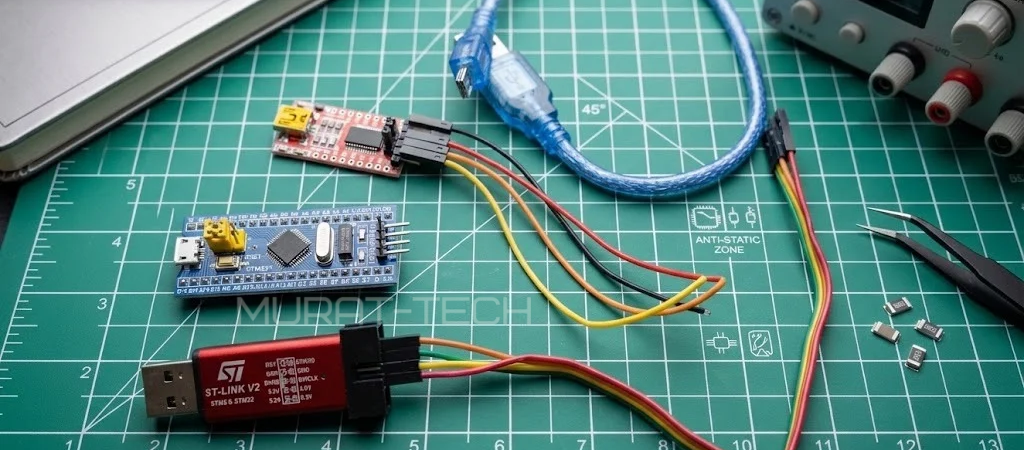
STM32 Blue Pill Guide: Arduino IDE, ST-Link & USB HID Bootloader Setup
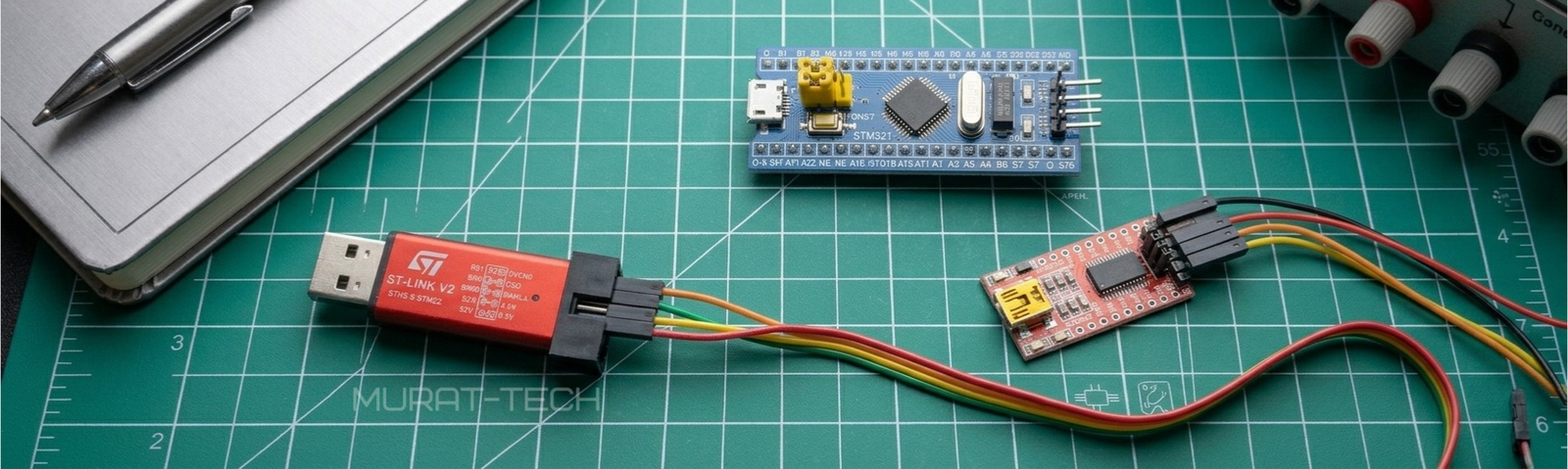
The STM32F103 ‘Blue Pill’ remains one of the best value-for-money microcontrollers on the market. Furthermore, it is significantly faster than an Arduino Uno and packs 64KB or 128KB of Flash memory. However, getting it to work seamlessly with the latest STM32 Blue Pill Arduino IDE tools can be a real pain. As a result, I’ve faced all the classic ‘Multiple Definition’, ‘Undeclared GPIOA’, and ‘Error: Target device not found’ messages, so that you don’t have to.
This guide is your straightforward, hands-on path to a stable Blue Pill setup.
Forget the guesswork—we are going to build a solid foundation.
The following topics will be covered:
- Step 1: Software Foundation for the STM32 Blue Pill Arduino IDE
- Step 2: The Core Hardware and Jumpers
- Step 3: Upload Methods: Choose between ST-Link, USB, or FTDI Serial Upload (ideal for emergency recovery).
- Check list and Conclusion
Step 1: Software Foundation for the STM32 Blue Pill Arduino IDE
Before touching the hardware, you must prepare the STM32 Blue Pill Arduino IDE environment by installing the correct tools. Therefore, use official software options—either the modern STM32CubeProgrammer or the legacy ST-Link Utility for older or clone hardware.
1.1 Download and Install:
💡Why you need them:
Indeed, the Arduino IDE core only compiles your code; consequently, it relies on STM32CubeProgrammer (or ST-Link Utility) running in the background to actually send the binary to the chip via the hardware programmer. Thus, install them first.
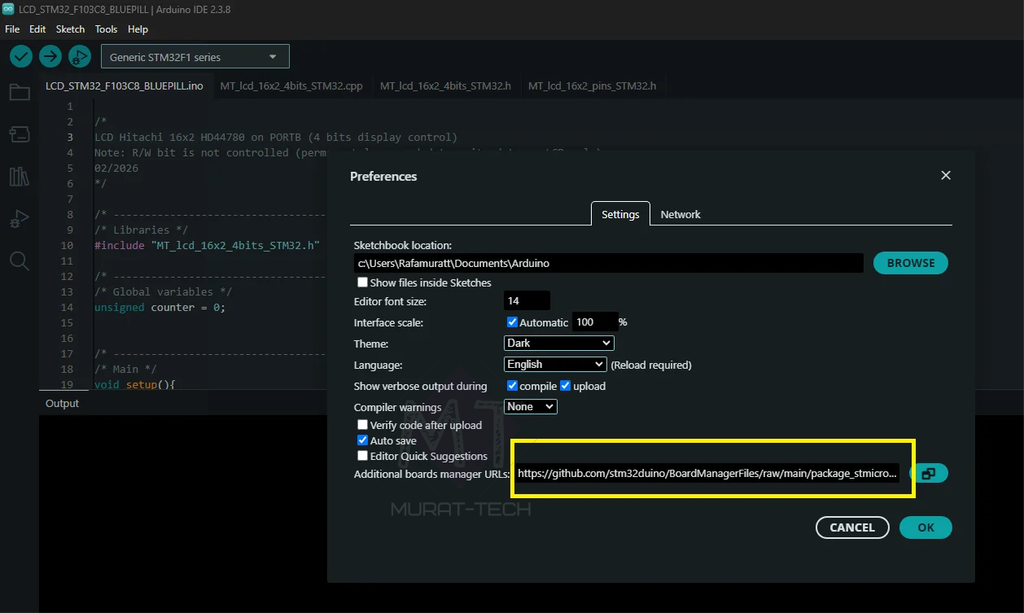
1.2 The “Secret” STM32 URL for use in the Arduino IDE:
- Click the copy icon in the code box below to easily copy the URL:
|
1 2 3 |
https://github.com/stm32duino/BoardManagerFiles/raw/main/package_stmicroelectronics_index.json |
- Open Arduino IDE, go to File -> Preferences and paste in “Additional boards manager URLs”:
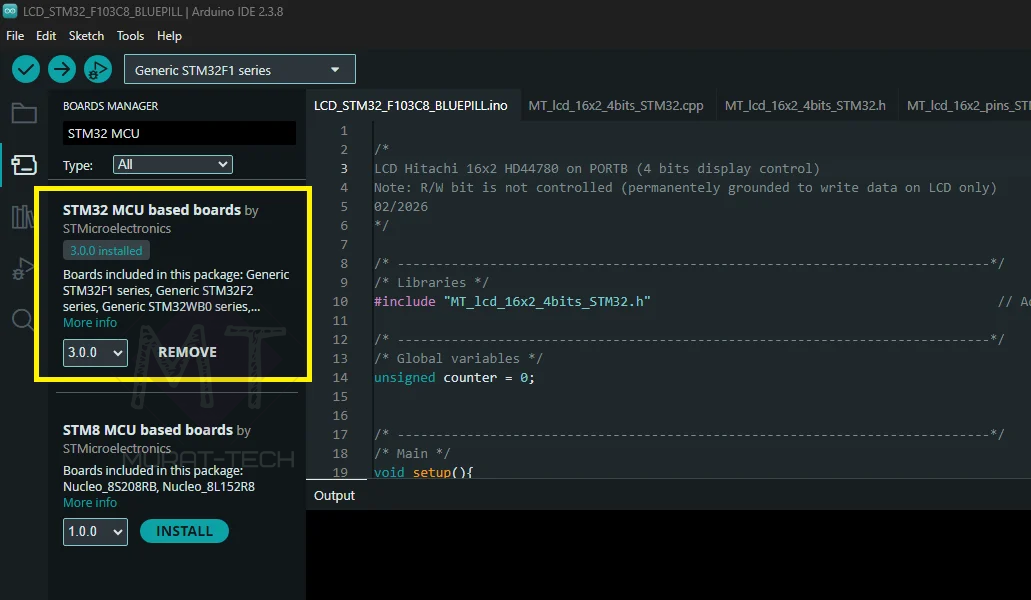
1.3 Install the STM32 board in the Arduino IDE:
- Go to Tools -> Board -> Boards Manager. Search for “STM32” and install the one by STMicroelectronics.
Step 2: The Core Hardware and Jumpers
In order to make your Blue Pill work properly, you must control the BOOT0 and BOOT1 jumpers, whereby:
- Logic level 0 (Connected to GND) = Jumper on the side closer to the USB connector.
- Logic level 1 (Connected to 3.3V) = Jumper on the side closer to the board center.
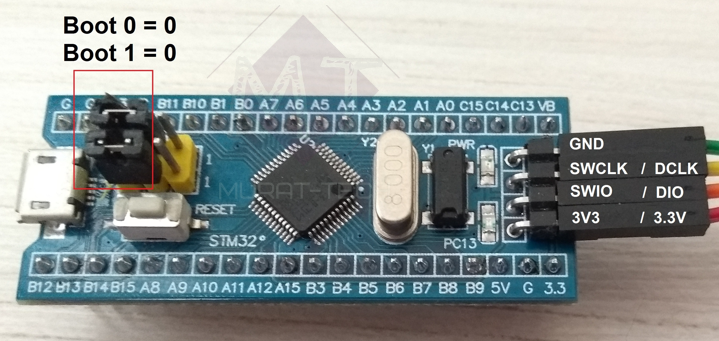
| Mode | BOOT 0 | BOOT 1 | What it does: |
|---|---|---|---|
| Run Mode | 0 | 0 | The chip runs your program (or bootloader) on power-up. |
| Boot Mode | 1 | 0 | The chip listens for a new program via its internal factory menu (only via Serial/UART). |
Depending on the manufacturer batch of your Blue Pill, the SWD pin labels printed on the board may vary; nevertheless, their functions are identical:
| Pin | Function |
|---|---|
| GND | GND |
| SWCLK or DCLK | Clock Signal |
| SWIO or DIO | Digital Input/ Output |
| 3V3 or 3.3V | 3.3V Power Supply |
Step 3: Upload Methods
All the methods below provide a stable connection to your STM32 Blue Pill so that you can upload your firmware safely. Ultimately, your choice depends primarily on the hardware and programmers you have on hand.
In addition, having multiple connection options is extremely useful if your STM32 becomes unresponsive, allowing you to troubleshoot and recover your device rather than throwing it away.
To do so, does it make sense to also use a FTDI USB-to-serial adapter? Absolutely!
Method 1: The Bulletproof ST-Link (Recommended for Beginners)
This method uses the SWD (Serial Wire Debug) port. It is the most robust connection and works every time, bypassing any software-level problems.
The Wiring:
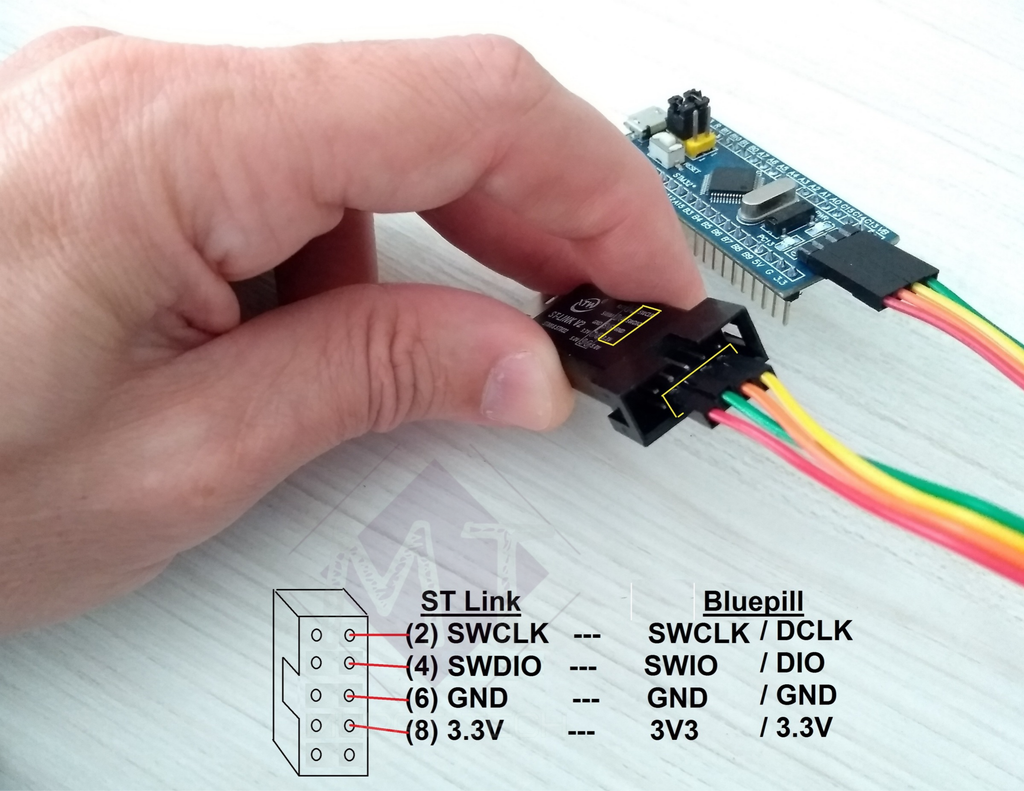
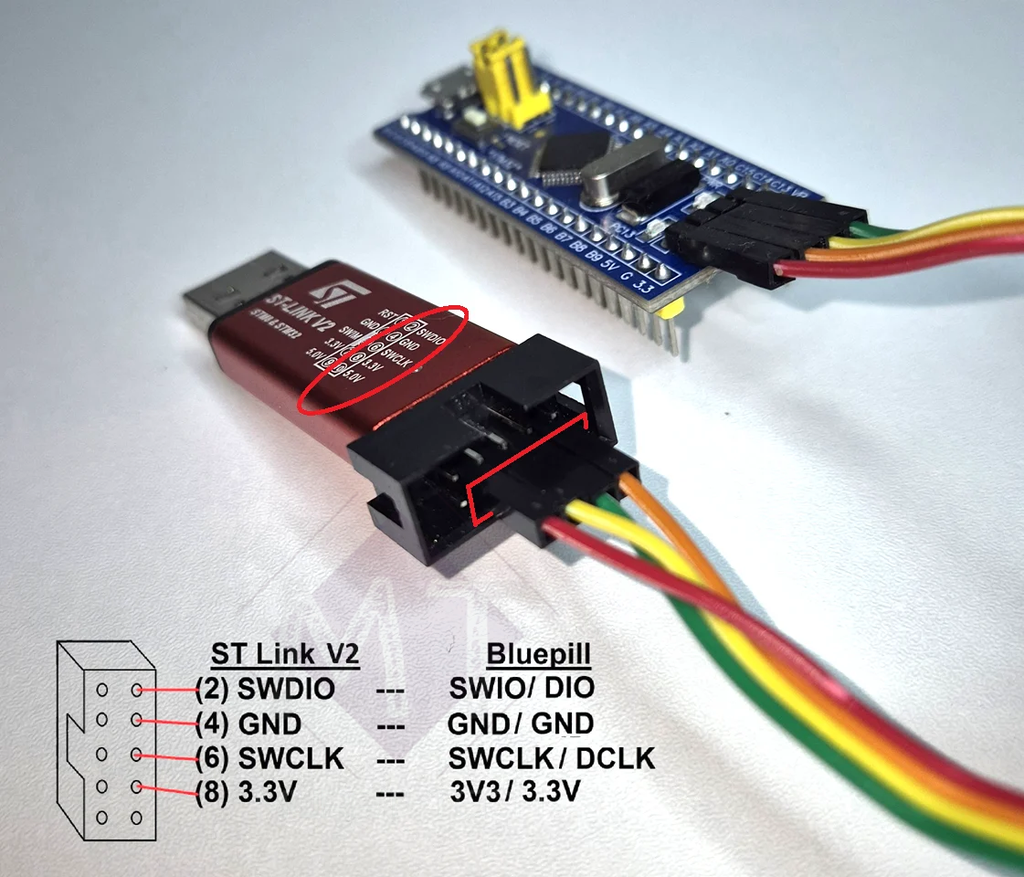
Connect the 4 pins at the end of the Blue Pill to your ST-Link as shown in the photos below.
☠️ WATCH OUT!
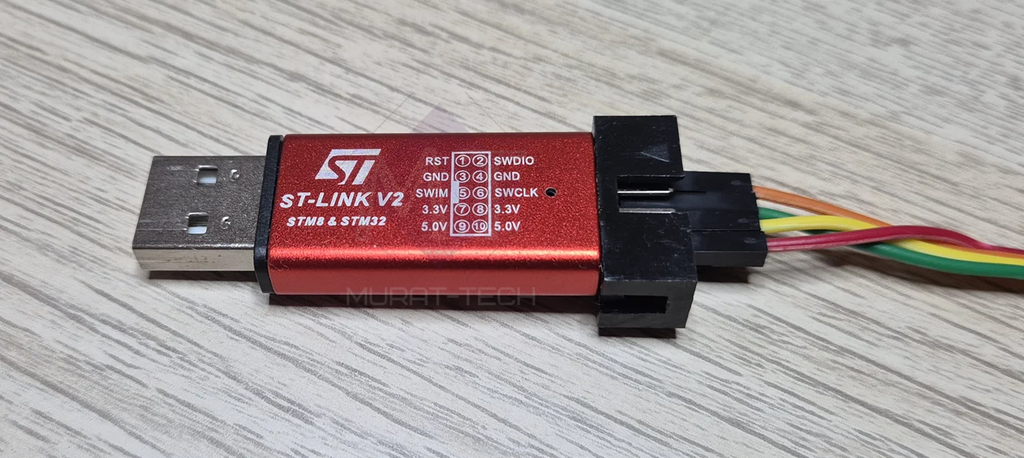
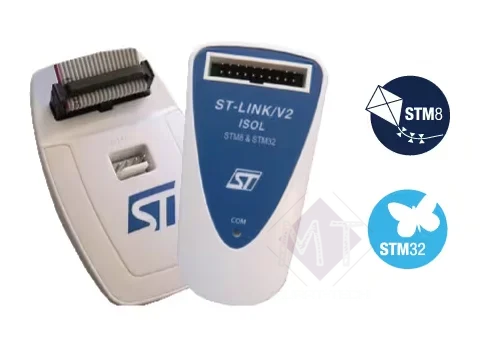
Depending on the manufacturer batch of your ST-Link programmer, the pinout order printed on the case may vary completely.
Always double-check your hardware labels to avoid short-circuits—see the comparison photos and tables below:
| Blue Pill | ST-Link clone |
|---|---|
| SWCLK/ DCLK | Pin 2 (SWCLK) |
| SWIO/ DIO | Pin 4 (SWDIO) |
| GND | Pin 6 (GND) |
| 3V3/ 3.3V | Pin 8 (3.3V) |
| Blue Pill | ST-Link V2 clone |
|---|---|
| SWIO/ DIO | Pin 2 (SWDIO) |
| GND | Pin 4 (GND) |
| SWCLK/ DCLK | Pin 6 (SWCLK) |
| 3V3/ 3.3V | Pin 8 (3.3V) |
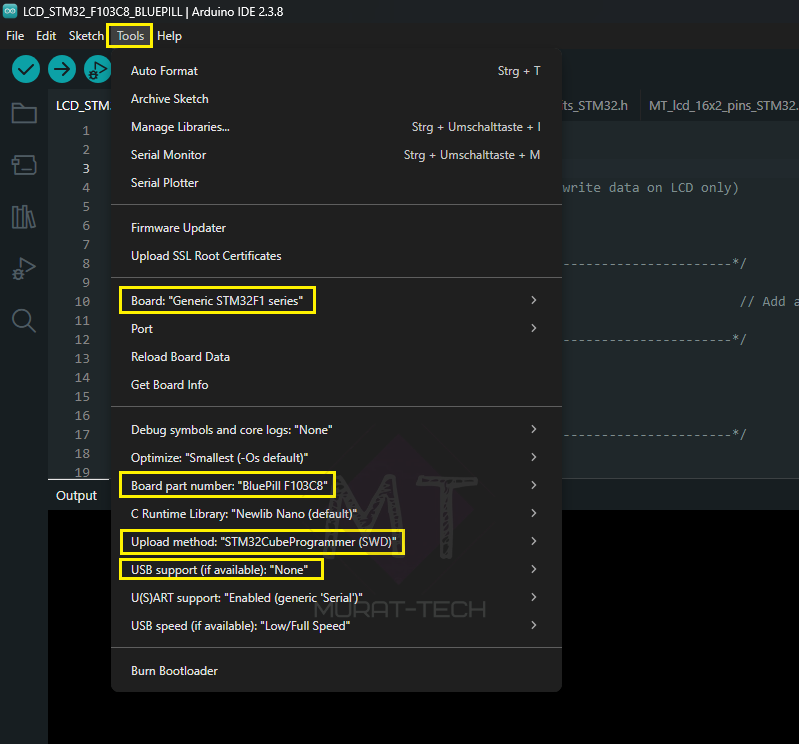
Arduino IDE 2.3+ Settings:
- Board: Generic STM32F1 series
- Board part number: BluePill F103C8 or BluePill F103CB (C8 with 128K)
- Upload method: STM32CubeProgrammer (SWD)
- USB support: None (If you aren’t using USB for serial monitor)
- Test Your Connection: Open
File -> Examples -> 01.Basics -> Blink(compile and click Upload). If everything is configured correctly, the onboard LED (PC13) on your STM32 Blue Pill will start blinking.
💡The “Under Reset” Trick:
If your upload fails to connect, hold the Reset button on the Blue Pill, click Upload in the IDE, and release the button as soon as you see “Memory Programming” or “Downloading.”
Method 2: STM32 Blue Pill Arduino IDE – USB Plug & Play Mode with HID Bootloader
This is the ultimate setup! Instead of relying permanently on an external ST-Link or an FTDI adapter with dangling wires, this bootloader allows you to upload code directly via a standard USB cable straight from the Arduino IDE—exactly like a regular Arduino Uno.
Once you flash this bootloader just once using an ST-Link, you can use the Blue Pill’s built-in USB port for both uploading new code and monitoring serial output, requiring zero driver configurations and no jumper changes.
Important Note for ST-Link Clones vs. Official Hardware
The official STM32CubeProgrammer app enforces strict security and protocol checks. If you are using a generic USB-stick ST-Link clone (typically the aluminum USB-dongle type), the STM32CubeProgrammer may fail to connect or throw reset errors (SWrst reset mode timeout).
In this case, use the classic ST-Link Utility tool, which works flawlessly on Windows 11 without connection issues and can be downloaded with the link below:
If you have an Official ST-Link adapter, use STM32CubeProgrammer available here: STM32 Cube Programmer
Get the Bootloader Binary:
You can find the latest hid_generic_pc13.bin binary in Serasidis’ Github Repository or download a stable version directly using one of the links below (choose the correct one for your 64KB or 128KB flash memory version):
Flash the Bootloader ONCE:
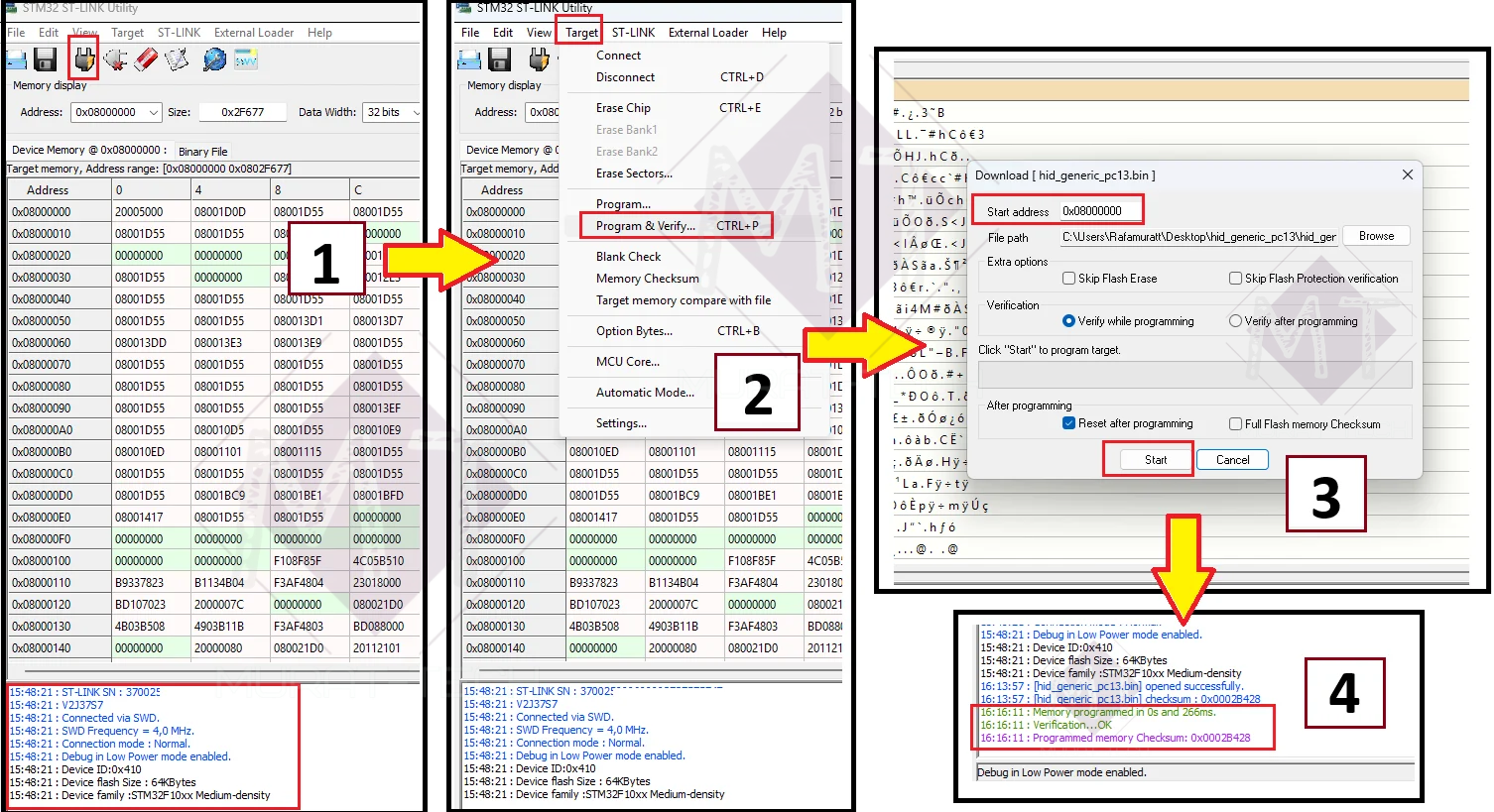
Option A: Using ST-Link Utility (Recommended for ST-Link Clones)
- Open ST-Link Utility and click Target -> Connect.
- Click Target -> Program & Verify.
- Browse to select
hid_generic_pc13.binand ensure the Start Address is set to0x08000000. - Click Start.
The screenshot below illustrates steps 1 through 4. Once the bootloader is successfully flashed, a confirmation message will appear in the log window, and the onboard LED (PC13) on your STM32 Blue Pill will immediately begin blinking continuously.
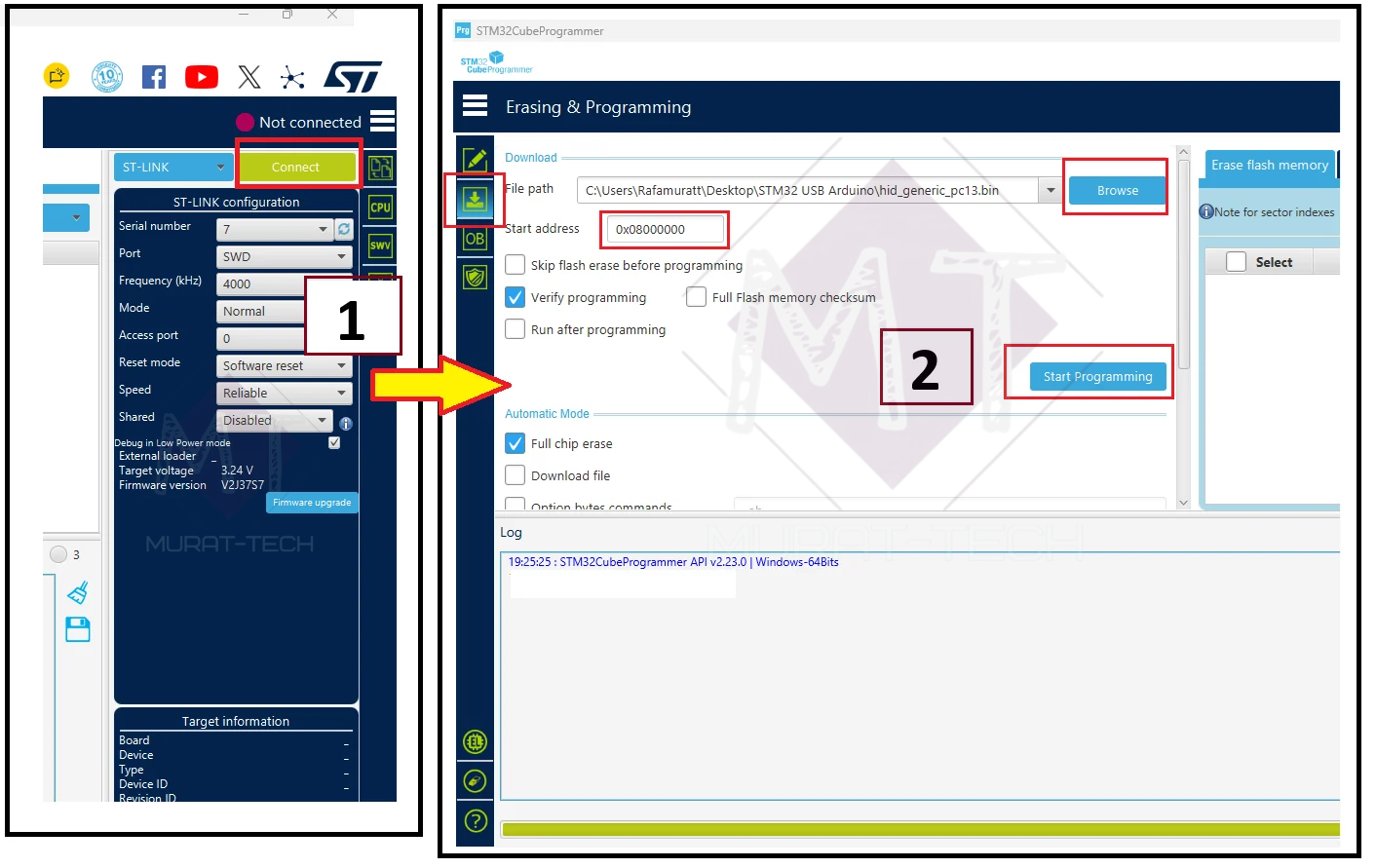
Option B: Using STM32CubeProgrammer (For Official ST-Link Hardware)
- Open STM32 Cube Programmer and click Connect.
- Go to the “Erasing & Programming” tab.
- Browse to select
hid_generic_pc13.binand ensure the Start Address is set to0x08000000. - Click Start Programming.
Flashing the bootloader using STM32CubeProgrammer follows a similar process to the ST-Link Utility steps above (using a modern software interface). Upon completion, a success message will appear in the log window, and the onboard PC13 LED will immediately begin blinking.
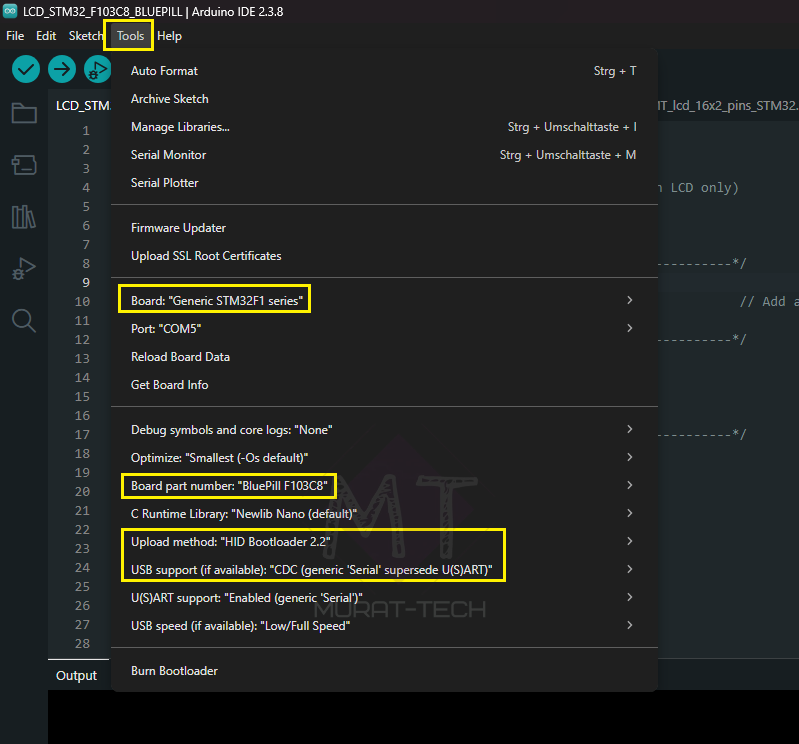
Settings for the STM32 Blue Pill Arduino IDE (daily use: Code Upload/ Serial Monitor):
- Board: Generic STM32F1 series
- Board part number: BluePill F103C8 or BluePill F103CB (C8 with 128K)
- Upload method: HID Bootloader 2.2
- USB support: “CDC (generic ‘Serial’ supersede U(S)ART)”
- Verify Operation: Open the standard
Blinksketch (File -> Examples -> 01.Basics -> Blink) and upload it via USB. The onboard LED (PC13) will immediately begin flashing to confirm a successful connection.
Method 3: Alternative Serial Upload (FTDI)
Use this method if your ST-Link fails, or if you simply prefer not to flash a custom bootloader. It utilizes the microcontroller’s hardcoded, internal factory ROM bootloader.
While it requires manual jumper adjustments and a reset sequence for every upload (making it slightly less convenient), it is a robust and reliable alternative—making it especially useful as a backup or for recovering unresponsive boards. To use it, you will need a generic USB-to-Serial (FTDI/CH340) adapter…
☠️ WATCH OUT!
Never connect 5V to the “3.3” pin. By doing so you’ll definitely kill your STM32 Blue Pill.
The Critical Jumper/Reset Sequence:
💡Important Post-Upload Action:
After a successful upload, your program will not run! You must move BOOT0 back to 0 and press Reset again.
Only then will your code and Serial Monitor begin.
Checklist and Conclusion
- Official Core: Always use the package_stmicroelectronics_index.json Board URL.
- Choose Your Tool: First, install STM32CubeProgrammer if you use official hardware; conversely keep the classic ST-Link Utility handy if you are using an ST-Link clone.
- Jumper Memory: Specifically, keep BOOT0=0 for running programs, SWD and HID; meanwhile, set BOOT0=1 only when using the FTDI USB-to-Serial adapter.
- My Recommendation: Ultimately, use an ST-Link once to flash the
HID Bootloader. In conclusion, it is the absolute best compromise of speed, stability, and “USB Arduino-like” simplicity. - First Test (Sanity Check): Always test your connection by uploading the standard Blink sketch (
File -> Examples -> 01.Basics -> Blink). If the onboard PC13 LED starts flashing, your setup is 100% verified and ready for your code!
You are now ready to write code for your STM32 Blue Pill and most importantly, you saved your device from the recycling bin (and saved some money as well!).
What method is your preferred choice? Please share in the comments section below.
Sharing what we learn and make is our passion. If you feel this effort is worth supporting, a small contribution helps sustain the creation of new tutorials and projects.
Support Us Here:

We appreciate your readership. See you in the next post!
STM32 Blue Pill Guide: Arduino IDE, ST-Link & USB HID Bootloader Setup © 2026 by Murat-Tech Hub is licensed under CC BY-SA 4.0 


